

 ItalianoIT
 DeutschDE
 EspañolES
 PortuguêsPT
 FrançaisFR
 РусскийRU
Dimsport ECU reading and writing requires correct protocol selection, regulated power support, a verified original file and a documented recovery path. MyGenius, New Genius, Trasdata and Race EVO have different roles, and the exact procedure depends on the ECU/TCU, tool configuration, protocol and current Dimsport documentation.
Use this guide as your single reference for safe, repeatable Dimsport read/flash cycles. The core outcome: a validated ECU read, a correctly written tuned file, and a stock backup on file — achieved with MyGenius, New Genius, Trasdata, or Race EVO without a bricked ECU or a failed write.
Pre-read/flash checklist:
- Battery support unit connected and configured to the voltage and current required by the vehicle and protocol
- All cabin accessories off (headlights, climate control, seat heaters)
- Correct ignition state confirmed for the exact vehicle and protocol; KOEO is common but not universal
- Correct OBD or bench cable seated and USB drivers current
- Client software and device firmware checked against current official instructions
- Vehicle make/model/ECU type confirmed before protocol selection
- Stock read saved to IN/OUT folder with VIN, date, and tuner initials in the filename
- Tuned file checksum verified before upload to device
- Write completed with stable power; device log captured immediately after
- Post-write ECU identification, DTC scan and platform-specific ignition sequence completed
Pro Tip: Turn off every electrical accessory in the cabin before initiating an ID or read. Climate fans, headlights, and seat heaters draw enough current to cause voltage drop and communication failures mid-read — a mistake that can corrupt the read file and require a device reset.
1. Which Dimsport tools does this guide cover, and when should you use each?
This Dimsport tuning tool guide covers four hardware platforms. Each fills a distinct role in a professional shop workflow, and choosing the wrong one for a job costs time.
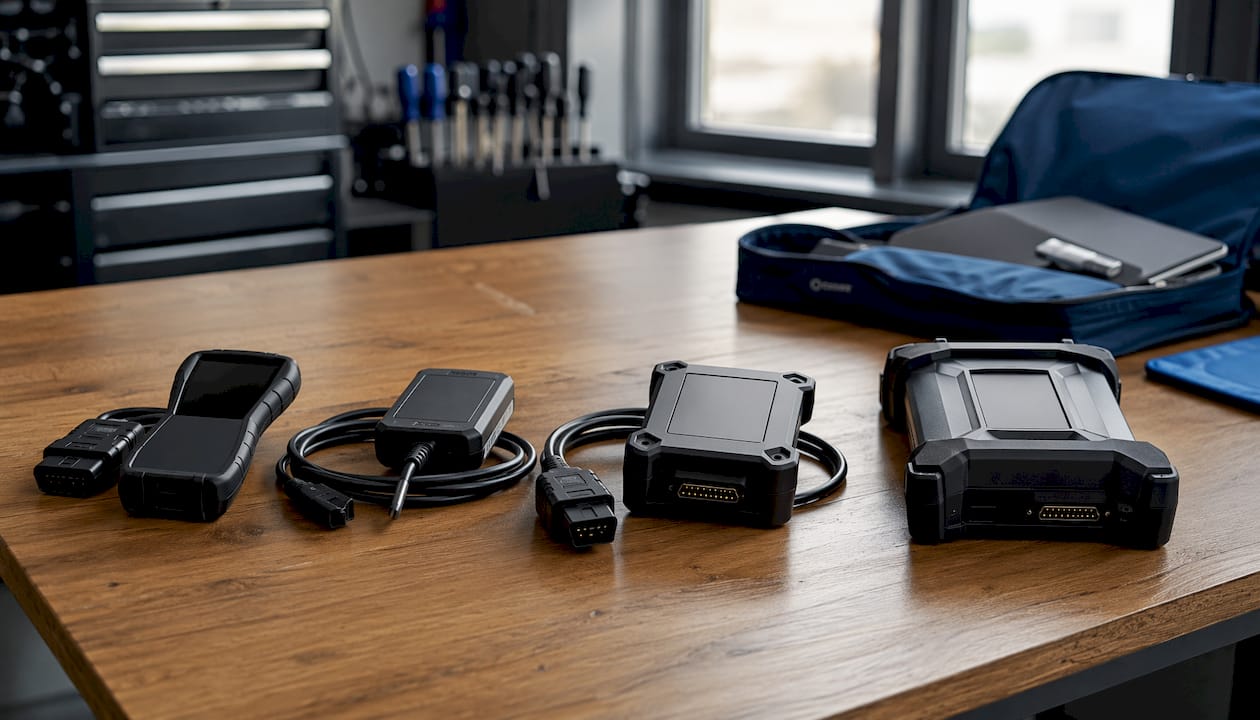
MyGenius is a standalone handheld OBD flasher. It reads and writes via the vehicle’s OBD port without a laptop present, making it the fastest tool for single-vehicle, repeat-customer jobs. The official MyGenius user manual documents two protocol identification modes: fully automatic (VAG, BMW, Mercedes, Porsche, Scania, John Deere) and manual Brand/Model/Type selection for all other vehicles.
New Genius (also called the Genius Suite or Flashpoint device) is a PC-connected interface that uses Flashpoint Client software. The IN/OUT file exchange workflow — read on device, download to PC, send to tuner, upload modified file, write to ECU — makes it the standard choice for shops that outsource calibration work or manage large file libraries.
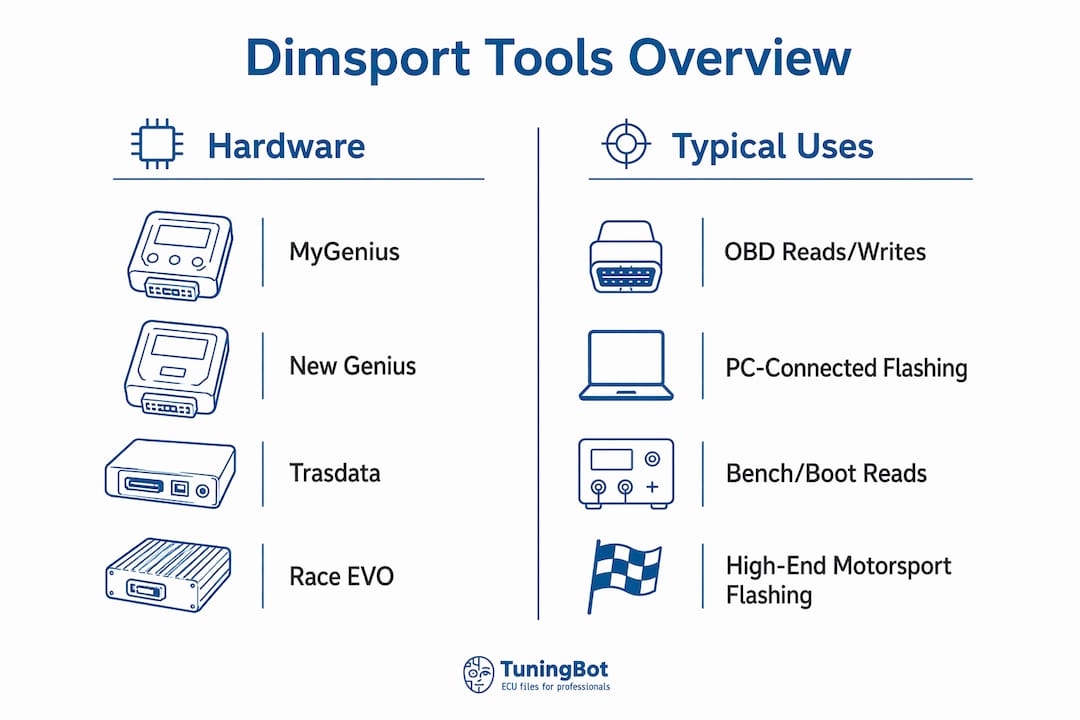
Trasdata handles bench, boot, and serial reads for ECUs that cannot be accessed reliably over OBD. Use it when an OBD read returns incomplete data, when the ECU requires direct pin access, or when you are recovering a unit that will not communicate via the diagnostic port.
Race EVO is Dimsport’s bench flash rig for motorsport and high-end performance applications. It supports direct ECU bench programming and is the correct choice when OBD access is locked out by the manufacturer or when the calibration requires full binary access.
| Product | Primary role | Important limitation |
|---|---|---|
| MyGenius | Handheld customer or vehicle-specific programming workflow where supported | Functions depend on configuration, protocol and Master provider |
| New Genius | Professional OBD and supported service workflows | File handling and access depend on tool configuration |
| Trasdata | Direct ECU/TCU access through supported Bench, Boot, BDM or JTAG methods | Requires exact pinout, adapters and protocol documentation |
| Race EVO | Calibration editing and map-development software | It does not replace ECU access hardware |
OS and software notes: Windows 8 or newer is recommended for MyGenius Client and Flashpoint Client. Drivers ship on the included USB key; additional driver packages are available from the vendor for older Windows builds. All four tools depend on their respective client software for file transfer — the device alone cannot push files to your PC without the client running.
2. Preparation and safety controls before you read or flash
Skipping preparation is the most common cause of failed reads and bricked ECUs in professional shops. Run this sequence before every job.
Power management. Connect a battery stabilizer or quality charger rated to maintain constant 12V during the entire read and write cycle. A charger set to a maintenance or supply mode works; a standard trickle charger does not. Voltage drop mid-write is the leading cause of incomplete flashes that require bench recovery.
Hardware checklist:
- Known-good OBD or bench cable, inspected for bent pins
- USB cable from the device kit (not a generic charging cable)
- Correct vehicle-specific adapter if required by the ECU type
- Spare read device or backup programmer available for recovery scenarios
Software checklist:
- MyGenius Client or Flashpoint Client installed on a Windows 8+ machine
- Device firmware updated — run the update cycle at least twice on initial setup to capture all module updates
- USB drivers installed and confirmed in Device Manager
- IN/OUT folder structure created and tested with a prior read file
Before any dealer service visit, flash the vehicle back to stock. If a dealership overwrites a tuned file with a new OEM firmware update, the Dimsport device will be unable to write any modified file back until a forced reset is performed — a process that may incur fees and requires contacting your master distributor. Restore stock before handing the vehicle over.
Legal and insurance note for US shops: ECU calibration that affects emissions control systems may conflict with EPA regulations and void manufacturer warranties. Confirm your shop’s compliance obligations and customer disclosure requirements before performing any emissions-related modification. This guide is technical information, not legal advice — consult a qualified professional for your specific situation.
Pro Tip: Keep a dedicated shop laptop for Dimsport client software only. Mixed-use machines accumulate driver conflicts and Windows updates that can break USB device recognition at the worst possible moment.
3. How to read an ECU safely using Dimsport hardware
The minimum viable read sequence: connect the cable, confirm KOEO, let the device identify the protocol, capture the read file, and transfer it to the PC before doing anything else.
OBD read procedure (MyGenius and New Genius):
- Connect the OBD cable to the vehicle’s diagnostic port and to the Dimsport device.
- Connect the battery stabilizer.
- Turn the ignition ON, engine OFF (KOEO). For keyless-start vehicles, press the start button without pressing the brake pedal to reach accessory/ignition-on mode.
- Switch off all cabin accessories: headlights, climate control fans, seat heaters, and infotainment screens.
- On the device, select WORK from the main menu.
- For VAG, BMW, Mercedes, Porsche, Scania, or John Deere: the device runs automatic protocol identification. For all other vehicles, select Brand → Model → Type manually.
- Confirm the stabilized battery prompt and press OK.
- Select READING and follow the on-screen prompts. Do not disconnect the cable or turn off the ignition.
- When the read completes, unplug the OBD cable from the vehicle.
- Connect the USB cable from the device to the PC and open MyGenius Client or Flashpoint Client.
- Click Download from MyGenius (MyGenius Client) or Read NewGenius (Flashpoint Client) to transfer the read file to the PC.
- Save the file immediately to your IN/OUT folder using the naming convention below.
File naming convention:
STOCK_[VIN_LAST8]_[DATE]_[TUNER].binfor the original readIN_[VIN_LAST8]_[DATE]_[TUNER].binfor the file sent to the calibratorOUT_[VIN_LAST8]_[DATE]_[TUNER].binfor the modified file returned
Including VIN, date, and tuner initials in the filename reduces turnaround time when working with remote file providers and makes rollback straightforward.
Bench and boot-mode reads. When an OBD read returns incomplete data or the ECU does not respond, switch to Trasdata for bench or boot access. Select the correct protocol from the Trasdata software’s ECU database — never guess. Boot mode requires physical pin access to the ECU board; confirm the correct boot pins from the Dimsport Knowledge Base or your distributor’s documentation before proceeding.
Pro Tip: Minimize cabin electrical load before every ID and read. A quiet cabin eliminates the single most common class of communication errors without any other troubleshooting.

4. How to write a tuned file back to the ECU and verify the result
Follow the device prompts, keep stable power throughout, watch the device log, and verify with an ECU ID check before releasing the vehicle.
Write procedure (MyGenius / New Genius):
Connect the battery stabilizer first. Open MyGenius Client or Flashpoint Client, navigate to the IN tab, and import the modified file received from your calibrator. Use Write NewGenius (Flashpoint) or the FILE UPLOAD function (MyGenius Client) to push the file to the device. Disconnect the USB cable, connect the OBD cable to the vehicle, select WORK on the device, and follow the on-screen prompts. The device will display any notes attached to the modified file before writing — read them. Do not interrupt power or disconnect the cable during the write sequence.
For keyless-start vehicles, confirm the correct ignition-on procedure for that platform before initiating the write. Some vehicles require a specific door-open or brake-pedal sequence to reach a stable KOEO state.
Post-write verification:
- Perform an ECU ID check immediately after the write to confirm the new calibration ID matches the tuned file.
- Complete two full ignition cycles (on/off/on) and check for stored DTCs with a scan tool.
- Inspect for any abnormal smoke, unusual idle behavior, or warning lights before a road test.
- A short dyno pull or controlled road test with data logging is the correct final validation step. For dyno preparation practices applicable to performance builds, the workflow guidance at Thunderhorse Tuning covers pre-session checks that translate directly to four-wheel validation runs.
If a write fails mid-process, do not disconnect the device. Leave the cable connected, capture the device log immediately, and attempt a boot-mode recovery via Trasdata if the ECU will not respond. A mid-write failure with the cable still connected is recoverable in most cases; disconnecting during the failure often makes recovery significantly harder.
Rollback procedure. Load your saved STOCK file via the IN tab, push it to the device, and write it back using the standard write sequence. Confirm the stock ECU ID after the write. Keep the stock file in a separate, clearly labeled folder — never overwrite it.
Pro Tip: Capture pre-write voltage in the device log before every flash. Many write failures are power events, not device failures. Having the voltage record speeds diagnosis and prevents unnecessary device resets.
5. Common errors and how to recover from them
Most Dimsport failures fall into three categories: communication errors, checksum/file errors, and ECU soft-bricks. Each has a distinct recovery path.
Communication errors — immediate checks:
- Verify battery voltage is at or above 12V with the stabilizer connected.
- Confirm the OBD cable is fully seated with no bent pins.
- Check USB driver status in Windows Device Manager; reinstall if the device shows an error flag.
- Confirm the device firmware is current — a firmware mismatch between the device and client is a frequent cause of failed ID attempts.
- Verify ignition position is KOEO, not KOER (engine running) or accessory-only.
- Disable all cabin accessories and retry the ID sequence.
Checksum and file-format errors. A checksum mismatch means the file’s internal validation data does not match its content. Do not attempt to guess or manually patch checksum values. Use a dedicated ECU file checksum correction tool or return the file to your calibrator for correction. Writing a file with an incorrect checksum can produce unpredictable ECU behavior or a failed write that requires bench recovery.
Bricked ECU triage:
- Soft brick: The ECU is unresponsive over OBD but the vehicle’s basic electrical systems are intact. Attempt boot-mode recovery via Trasdata using the correct boot pins and a known-good stock file.
- Hard brick: The ECU does not respond to boot-mode access. At this point, bench reprogramming with Race EVO or an external bench reprogramming service is required.
- If bench recovery fails, escalate to Dimsport vendor support or a specialist ECU repair service.
Escalation: what to collect before contacting support. Device logs and the exact read file are the first things any vendor or file provider will request. Include the device serial number, client software version, vehicle VIN, ECU part number, and a description of the failure sequence. Providers typically require these materials before issuing recovery steps or authorizing a device reset.
6. File formats, map identification, and safe editing practices
Dimsport tools produce and consume binary ECU files, typically with extensions that reflect the device and workflow used.
| File type | Typical role | Caution |
|---|---|---|
| Tool-specific or encrypted file | Used inside a configured Dimsport or Master/Slave workflow | May not be directly editable or portable |
| Raw binary | Full or partial ECU data where provided | Must match the exact hardware, software and read type |
| Virtual read | Server-supplied original matched from ECU identification | Not the same as a physical full backup |
| ORI / MOD naming | Workshop convention for original and modified files | Extensions alone do not prove origin or integrity |
Map identification. ECU maps are located by offset within the binary. Use the map ID metadata embedded in the file header (where present) and cross-reference against Dimsport’s published map packs for the ECU type. Vendor map packs identify table locations, axis scaling, and recommended edit ranges for common calibration targets such as fuel, ignition, boost, and torque limits. Never edit a map location you cannot positively identify — an incorrect offset edit in a torque management or fuel table can produce dangerous engine behavior.
Safe file naming template:
[TYPE]_[VIN_LAST8]_[YYYYMMDD]_[TUNER_INITIALS]_[FW_ID].[ext]
Example: STOCK_AB123456_20260610_JD_SW1234.bin
This convention, combined with a structured folder hierarchy per vehicle, makes rollback and audit straightforward. For a detailed treatment of remap file structure and how to manage production file libraries, the TuningBot knowledge base covers the topic in depth.
Pro Tip: Store every stock read in a separate, write-protected folder immediately after capture. A version-controlled file archive — even a simple dated folder structure — is your primary defense against accidental overwrites and the fastest path to a customer rollback.
7. Shop-grade workflow: validation, documentation, and customer delivery
A professional shop workflow runs in one direction: read, backup, edit, validate, write, verify, deliver. Deviating from that sequence is where most quality failures originate.
Compact workflow checklist:
- Read ECU and capture stock file (IN folder, named per convention)
- Verify read file integrity (checksum, file size, ECU ID match)
- Send to calibrator or edit in-house; receive OUT file
- Verify OUT file checksum before loading to device
- Write to vehicle with stable power; capture device log
- Post-write ECU ID check and DTC scan
- Dyno or road test with data logging; review against acceptance criteria
- Deliver stock file, tuned file, dyno logs, and written invoice to customer
Dyno and datalog validation. Log boost pressure, lambda/AFR, ignition timing, and knock counts as a minimum. Acceptance criteria depend on the calibration target, but any knock event, lambda excursion, or boost overshoot outside the agreed spec is a rejection. Package the dyno chart and log file with the customer invoice. For shops building out their dyno validation process, the ECU remapping techniques guide covers acceptance criteria and log review in detail.
Customer deliverables. Every completed job should include: the original stock file, the tuned file, dyno or road-test logs, and invoice wording that accurately describes the modification performed. In the US market, invoice wording for emissions-related modifications requires particular care — describe the calibration accurately and include any applicable compliance disclosures.
Pro Tip: Tag every file set with the device serial number and client software version used for the write. If a dealer or insurer later questions the calibration, you can demonstrate exactly which tool and software version produced the result — a detail that matters in any dispute.
8. Where to get official manuals, firmware, drivers, and US distributor support
Start with the official Dimsport resources before contacting support. Most firmware and driver issues are resolved by the published documentation.
Primary resources:
- Dimsport Knowledge Base — official how-to articles, protocol notes, and device-specific guidance
- MyGenius Client and Flashpoint Client downloads — available from your authorized distributor or the Dimsport vendor portal; also shipped on the USB key included with the device kit
- MyGenius client PDF — device-specific screen-by-screen walkthrough available from vendor resources
- Device firmware update pages — accessible within the client software after connecting the device
For US shops. Dimsport products are distributed in the US through authorized resellers. Contact your reseller for device registration, warranty support, and reset authorizations. When escalating a technical issue, collect the device serial number, client version, Windows version, and the full device log before opening a support ticket — this information is required before any reset or recovery authorization is issued.
Collecting logs for support. The device log is written automatically during every read and write cycle. Export it from the client software immediately after a failure. Include the log file, the read file (if captured), and a written description of the failure sequence in your support request.
Pro Tip: Keep all shop devices on the same firmware version. A firmware mismatch between two devices in the same shop — one updated, one not — is a common source of inconsistent behavior that wastes diagnostic time.
Key Takeaways
Reliable Dimsport read/flash cycles require stable power, current firmware, verified file checksums, and a stock backup captured before every write.
| Point | Details |
|---|---|
| Stable power is non-negotiable | Connect a battery stabilizer holding 12V minimum before every read and write cycle. |
| Firmware and drivers first | Update the device firmware (run the cycle twice on first setup) and confirm USB drivers before any job. |
| IN/OUT file discipline | Name every file with VIN, date, and tuner initials; store stock reads in a write-protected folder immediately. |
| Checksum before every write | Verify the OUT file checksum before loading it to the device; never write a file with an unresolved checksum error. |
| TuningBot for delivered files | Shops that prefer engineer-produced remap files can upload ECU reads directly to TuningBot for calibrated OUT files with no prepaid credits required. |
What professional shops consistently get wrong with Dimsport tools
The most preventable failures in Dimsport workflows are not hardware failures. They are procedural ones. Power management is the clearest example: a shop that runs dozens of reads without a stabilizer will eventually hit a voltage event mid-write, and the resulting recovery costs more time than every shortcut saved. The checklist in this guide exists because variability in procedure is the root cause of most recoverable failures.
A second pattern worth noting: file discipline is treated as optional until it is not. The shop that cannot locate a customer’s stock read six months after the job is the shop that has a problem when the customer returns after a dealer service visit. Naming conventions and folder structure are not administrative overhead — they are the technical foundation of a rollback capability.
The Dimsport Knowledge Base and the vendor client documentation cover the device-specific details. What they do not cover is the shop-level discipline that makes those details repeatable across technicians and vehicles. That is what this guide is built around.
TuningBot file support for Dimsport workflows
TuningBot provides calibrated ECU and TCU files for professional workshops using supported Dimsport workflows. The workshop must supply the correct ECU identification, original or virtual read, vehicle data and requested service.
Before ordering, workshops can check ECU and TCU Service Coverage, review the public Price List and browse the available ECU services.
The file can be submitted through Tune Your File without prepaid credits. Compatibility must be confirmed for the exact Dimsport workflow and file format.
The workshop remains responsible for diagnostics, programming procedure, legal compliance, recovery preparation and post-write validation.
When your shop’s workflow calls for delivered calibration files rather than in-house editing, TuningBot provides professionally calibrated ECU and TCU remap files for workshops using Dimsport and other major tools. Upload your stock read directly — no registration, no prepaid credits — and receive a calibrated OUT file ready to load into your Flashpoint or MyGenius Client.
TuningBot supports all major ECU brands including Bosch, Continental, Delphi, Marelli, Denso, and Siemens, covering Stage 1 through Stage 3, DPF Off, EGR Off, IMMO Off, DSG/TCU tuning, and more. For shops that need escalation support on a difficult read or a recovery scenario, engineer support is available through the same platform. Check the to confirm your vehicle is listed, then submit your file at .
Useful sources
- Dimsport F32 MyGenius User Manual on ManualsLib — useful archived reference; current official Dimsport documentation should take priority.
- ECU File Checksum Correction Guide — TuningBot.
- Engine ECU Programming Guide — TuningBot.
FAQ
What ignition position does Dimsport require for an ECU read?
The required ignition state depends on the vehicle and protocol. KOEO is common, but follow the current on-screen instructions for the exact model.
Dimsport MyGenius and New Genius require ignition ON, engine OFF (KOEO) for most reads. For keyless-start vehicles, press the start button without pressing the brake pedal to reach the ignition-on state.
What causes communication errors with Dimsport tools?
Common causes include unstable power, incorrect ignition state, cable or driver problems, unsupported protocol selection, vehicle-network issues and incompatible software or firmware versions.
The most common causes are low battery voltage, cabin accessories drawing current, an outdated device firmware, or a USB driver conflict. Connect a battery stabilizer, turn off all accessories, and confirm drivers are current before retrying.
How do I recover from a failed write with a Dimsport device?
Preserve the tool state and logs, follow the ECU-specific recovery instructions and contact Dimsport support or the authorized distributor when required.
Leave the OBD cable connected, export the device log immediately, and attempt a boot-mode recovery via Trasdata with a known-good stock file. If boot-mode access fails, escalate to bench reprogramming or vendor support with the log file and read file in hand.
Do I need to flash back to stock before a dealer service visit?
An OEM update may overwrite a tuned calibration. Restoring the original file can be appropriate, but prior programming may remain detectable.
Yes. If a dealer overwrites a tuned file with an OEM firmware update, the Dimsport device will be unable to write any modified file back until a forced reset is completed — a process that may require contacting your master distributor and incurring fees.
Can TuningBot provide OUT files compatible with Dimsport tools?
TuningBot can provide calibrated files for supported Dimsport workflows. Compatibility depends on ECU, tool configuration, file format and Master/Slave relationship.
Yes. TuningBot delivers calibrated ECU remap files in standard binary formats compatible with Flashpoint Client and MyGenius Client workflows. Upload your stock read at tuningbot.com with no registration required.